

Hemant Bhatt
OpenRouter + OpenCode: The Cheaper Way to Run a Serious Coding Agent
Introduction
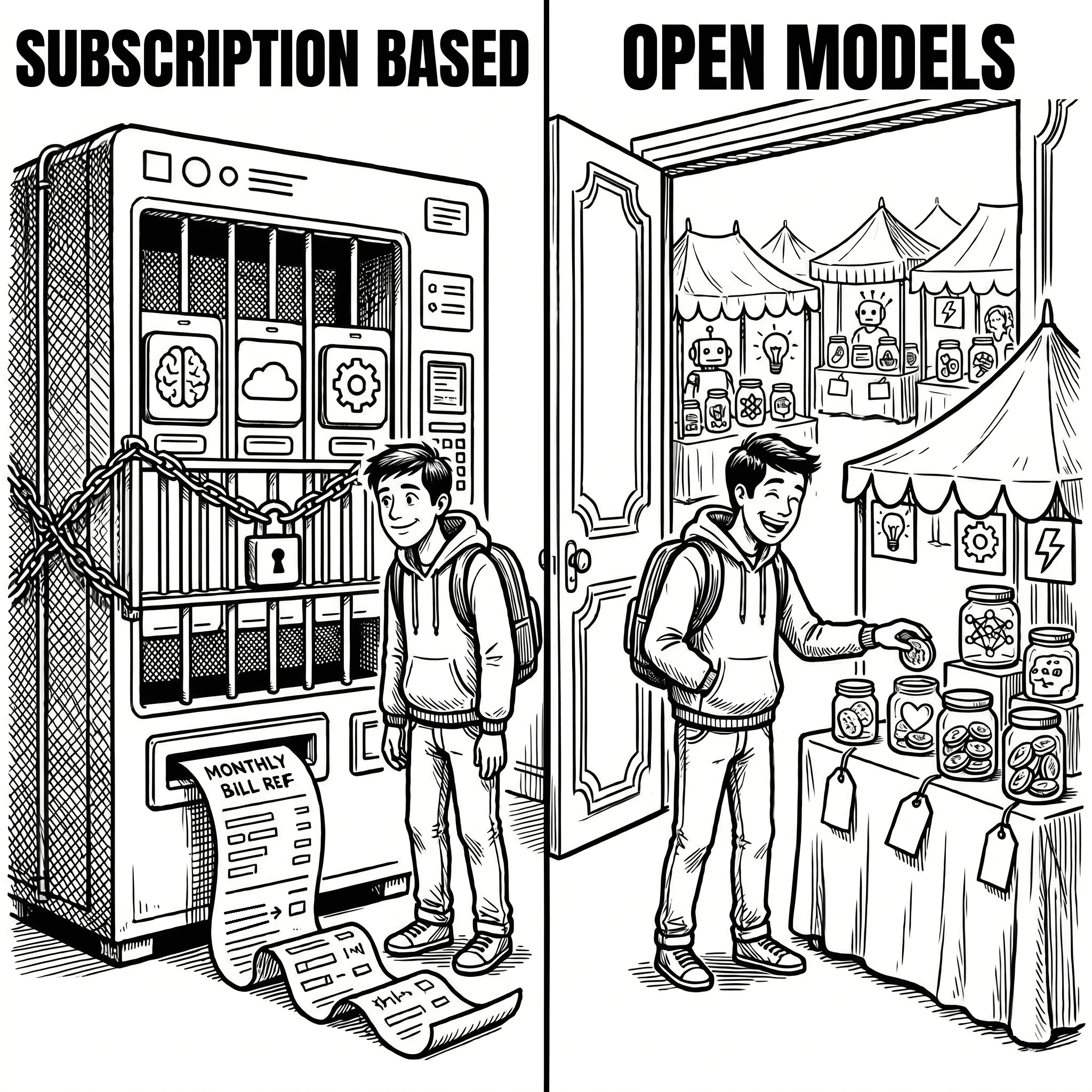
Here is a cunning little question: what if your coding agent did not have to live inside one expensive subscription box?
Think of it like buying coffee. You can buy the giant prepaid card and hope you drink exactly enough to justify it. Or you can walk into a market with a hundred counters, pick the cup you need, and pay for that cup.
That is the OpenRouter plus OpenCode setup. OpenCode gives you the agent. OpenRouter gives you the model marketplace. You choose the trade-off. Not the subscription page.
Running into hourly usage limits again and again? Looking at the Pro Max Ultra Pro Max plan with the thousand-yard stare of a developer who just wanted to fix a TypeScript error?
There is another door. The door is open tooling and open models. From decent intelligence at penny cost to great intelligence at still-sane cost.
Choose the model the task deserves
The trick is not finding one perfect model and marrying it forever. Use the smallest model that can do the job cleanly, then move up when the work needs deeper reasoning.
Tiny Chores
Use cheaper models
Renames, simple explanations, obvious TypeScript fixes, and small cleanup passes.
Real Thinking
Use stronger models
Architecture decisions, migrations, security review, and difficult debugging sessions.
Curiosity Mode
Try alternatives
Experiment with new providers and models when the task is flexible enough to explore.
Part 1: Set Up OpenRouter
OpenRouter is the model counter. Instead of creating separate accounts for every provider, you get one account, one API key, and access to a wide menu of models.
Create Your Account
- Login or sign up at OpenRouter.
- Go to the OpenRouter workspace: openrouter.ai/workspaces.
- Add credits to your account.
- Generate an API key and keep it handy.
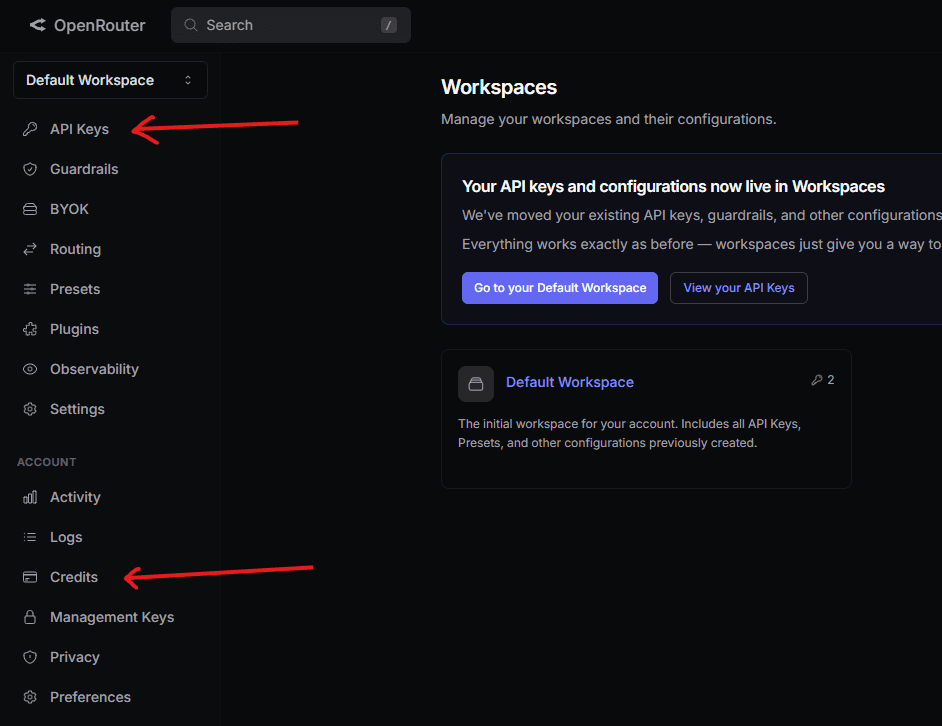
The screenshot is doing the important pointing for you: the API Keys section lives in the left sidebar for creating keys, and the Credits section lives under the account area for adding balance.
Add credits first. Then create the API key. That is the key you will paste into OpenCode.
House Key Rule:
Treat your OpenRouter API key like a house key. Do not paste it into screenshots, commit it to Git, or put it in project config unless the tool specifically needs it there.Credits matter because this is where the control comes from. Start small, watch usage, and adjust. If a cheap model handles refactors well enough, use it. If a difficult debugging session needs more horsepower, switch up.
Part 2: Install OpenCode With npm
OpenCode is the coding agent. It runs in your terminal, reads your project, helps plan changes, edits files, runs commands, and works with many LLM providers.
Install OpenCode
Use npm:
1 npm install -g opencode-ai
Then open a project:
1 cd /path/to/your/project 2 opencode
Reading the Starter Screen
When OpenCode opens, the starter screen tells you more than it looks like.
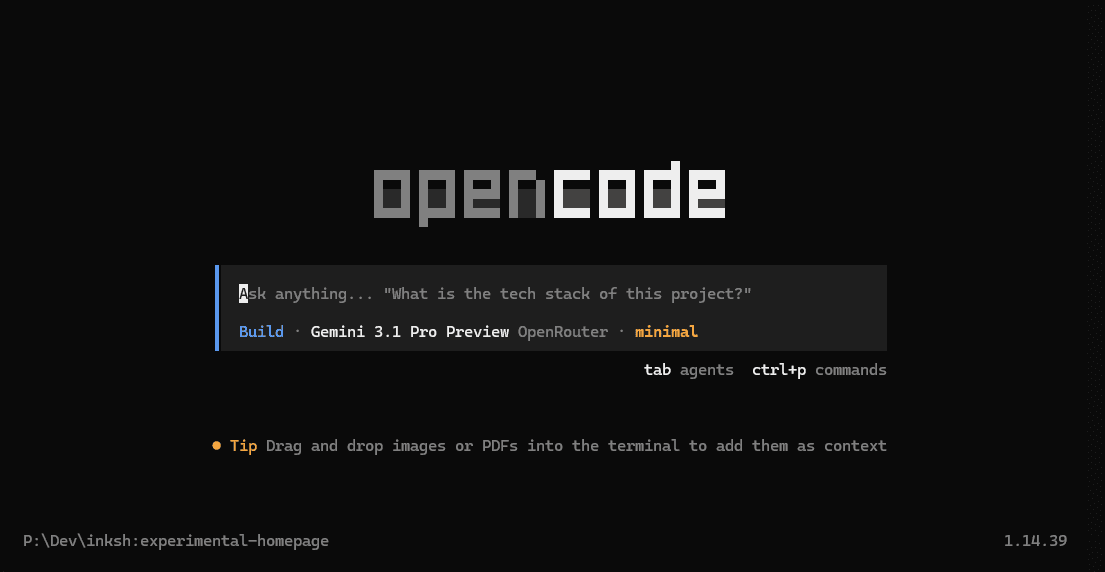
The mode label shows whether you are in Build mode or Plan mode. Use Tab to switch between them. Plan is for thinking. Build is for touching files. Nice little separation.
In this screenshot, the selected model is Gemini 3.1 Pro Preview running through OpenRouter. To change it, use /models and pick a different one.
On the bottom left, OpenCode shows the project folder name. That is your quick sanity check that the agent is standing inside the right repo before you ask it to swing the hammer.
The Ctrl+K Command Palette
Press Ctrl+K and OpenCode gives you a command dropdown in this setup.
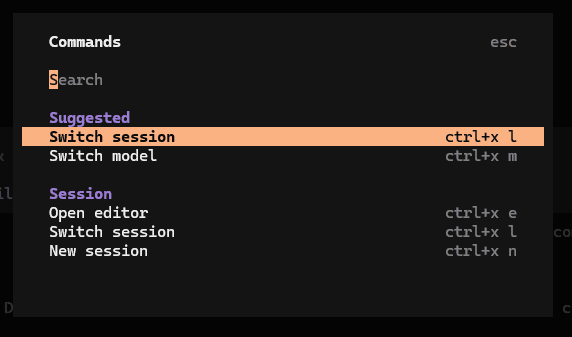
This is the control room for quick changes. Search for theme when you want a different look. Search for model when you want to switch the model without restarting the session.
This is also where model variants become useful: low thinking for tiny chores, high thinking for real debugging, and extra-high thinking when the codebase has decided to become a puzzle box.
Watch the Usage Meter
OpenCode also gives you a small usage readout near the top right.
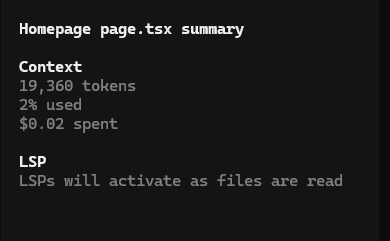
This is the meter that keeps the whole cost-saving story honest. It shows how many tokens are sitting in context, how much of the context window is used, how much context remains, and how much money the session has spent so far.
If the meter says 2% used, you still have roughly 98% of the context window left. If the cost is creeping up, switch to a cheaper model before asking for a big refactor.
Initialize the Project
Once OpenCode is open, ask it to understand the repo:
1 /init
This creates an AGENTS.md file: structure, patterns, commands, conventions, and the things future agent sessions should know.
Use Plan First, Build Second
For development work, the calm workflow is:
1 Explain this repo architecture.
1 Plan how to add the feature. Do not edit files yet.
1 Implement the plan.
This sounds slower. It is usually faster. You spend fewer tokens repairing accidental edits and fewer minutes reading surprise diffs.
Useful OpenCode Commands
Ctrl+K Open the command palette/connect Add a provider or API key/models Pick the model you want to use/init Create the project AGENTS.md/undo Revert the last OpenCode change/redo Re-apply a reverted change/share Share the current conversation manually/help See available commandsA Safer Beginner Config
If you want edits and shell commands to ask first, create an opencode.json file:
1 { 2 "$schema": "https://opencode.ai/config.json", 3 "default_agent": "plan", 4 "permission": { 5 "edit": "ask", 6 "bash": "ask" 7 }, 8 "formatter": true, 9 }
Part 3: Use Your OpenRouter Key
Now connect the two pieces. OpenCode needs a provider. OpenRouter is the provider. Your API key is the bridge between them.
Open your project in OpenCode.
Run opencode
Add the provider.
Run /connect
Choose the provider and paste the key.
Select OpenRouter
Pick the model for the job.
Run /models
Use Cheaper Models For
- -Renaming variables
- -Explaining a file
- -Drafting tests
- -Cleaning up obvious TypeScript issues
Save Stronger Models For
- -Architecture decisions
- -Hard debugging
- -Migrations
- -Security-sensitive changes
Cost Rule:
The goal is not cheap at all costs. The goal is not paying premium rates for chores.Conclusion
OpenRouter plus OpenCode gives you a more flexible coding-agent setup. You get one provider bridge, one open agent, and one smarter habit: match the model to the task.
- One provider bridge: Use OpenRouter to access many models from one place.
- One open agent: Use OpenCode as the terminal coding agent.
- One key flow: Create the OpenRouter key, then connect it through
/connect. - One safety rail: Plan first, build second, and use
/undowhen the diff goes sideways.